Resend Forge is Resend’s next-generation email infrastructure. It’s faster than the old engine on every percentile and has best-in-class delivery rates. It’s fully managed by Resend, using our own IPs and our own sending and receiving engine, with no third party in the middle. That gives us full visibility into every hop, so we can better help you with any deliverability or support request. You can read the full announcement on our website.
Your domain keeps sending at all times while we verify the new DNS record, and nothing else changes: your API calls, SMTP credentials, and webhooks all stay the same.

Activate Resend Forge

Activating Forge requires one CNAME record for sending domains. In the case of receiving, you will need to update one MX record. No code changes are required in either case.
1

Open the activation page

  1. Go to Domains and select your domain.
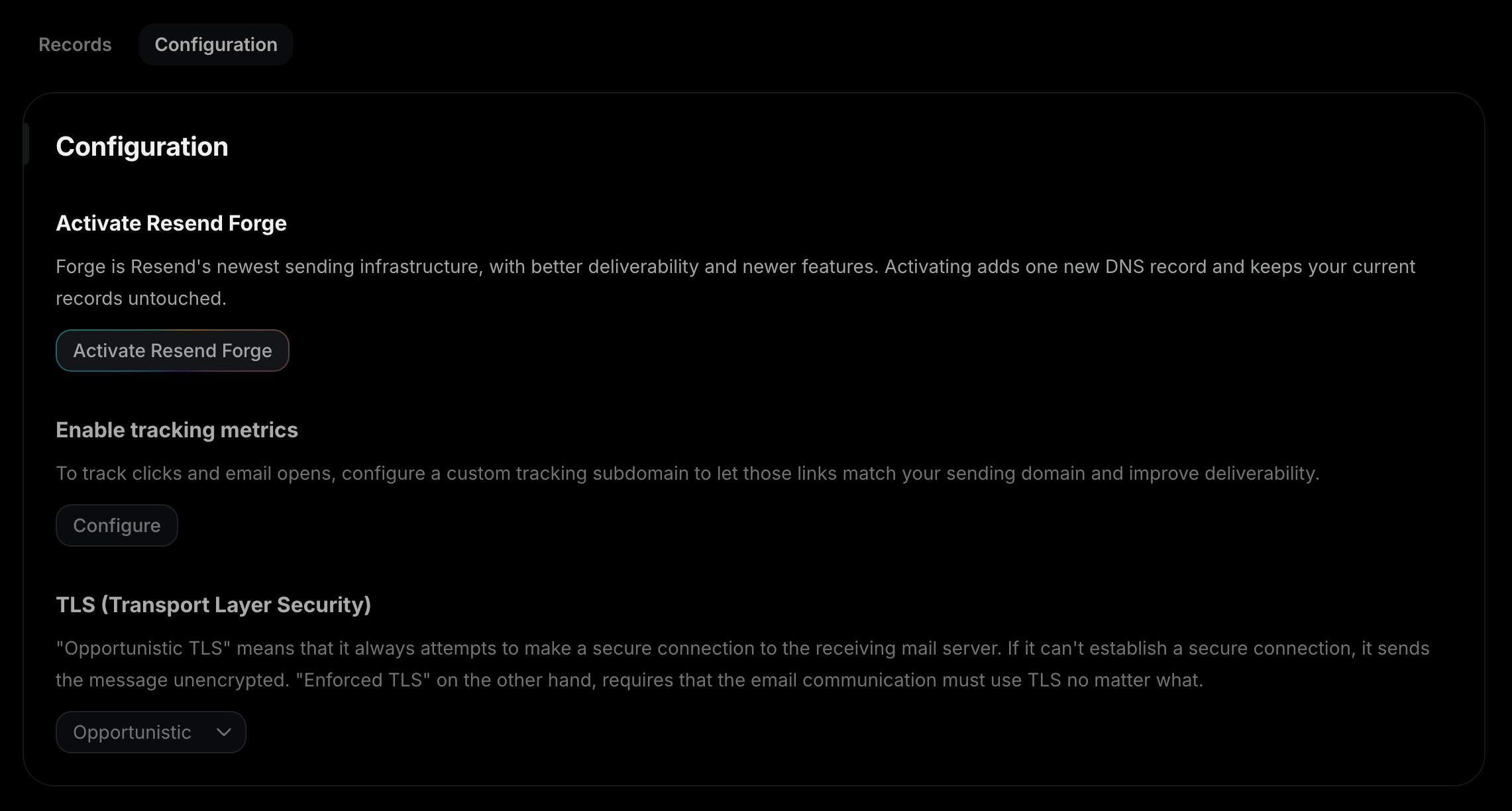
  2. Under Configuration, click Activate Resend Forge. The Activate Resend Forge section in the domain's Configuration tab
2

Choose the Return-Path

Receiving-only domains don’t need a Return-Path, so you will only see the record updates your domain needs.
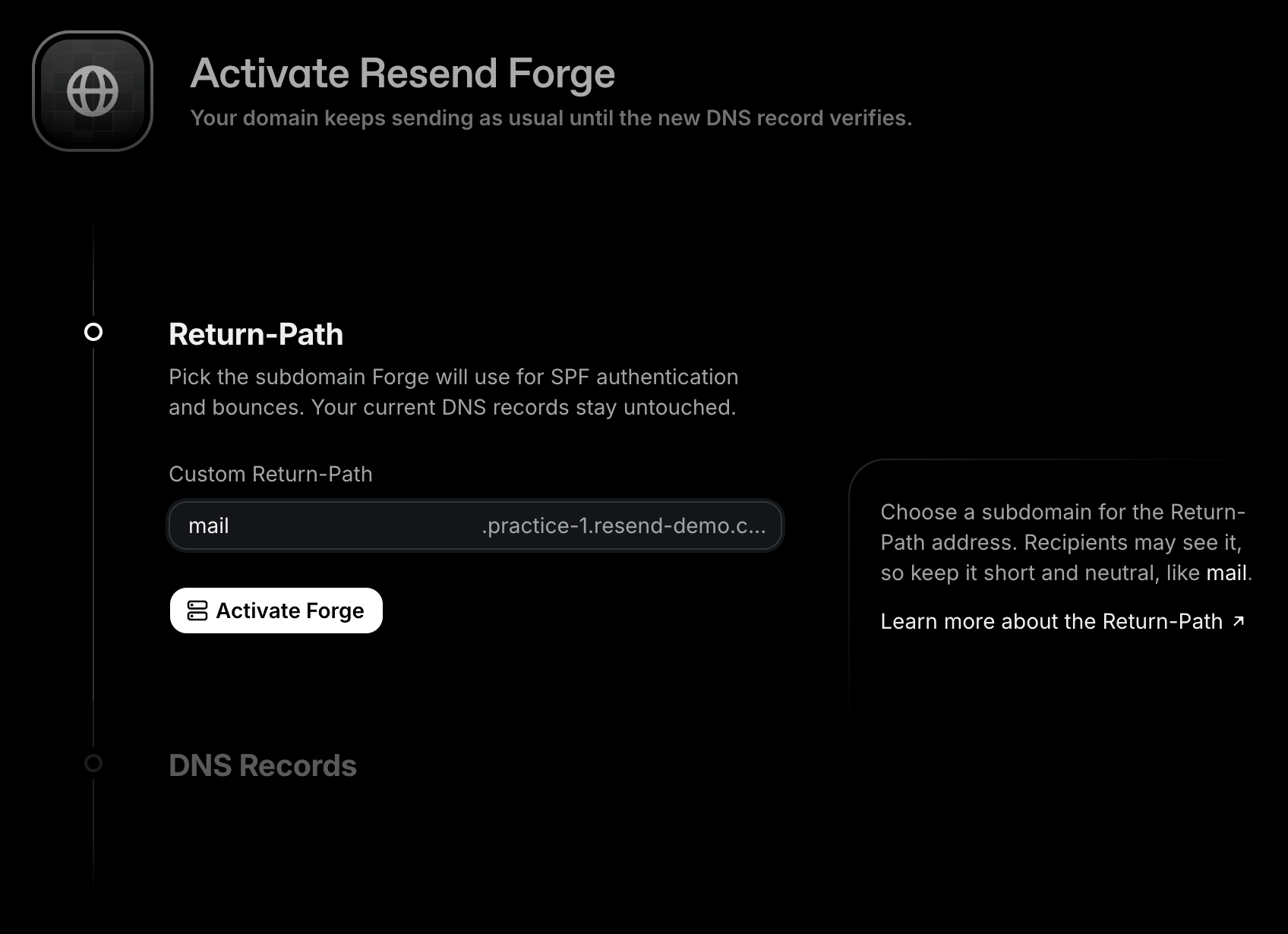
Forge uses a new subdomain as the Return-Path (e.g. mail.yourdomain.com). We suggest an available one by default. You can type a different one, and the field checks that the subdomain is free before you continue.Click Activate Forge.The Return-Path step of the Activate Resend Forge page
3

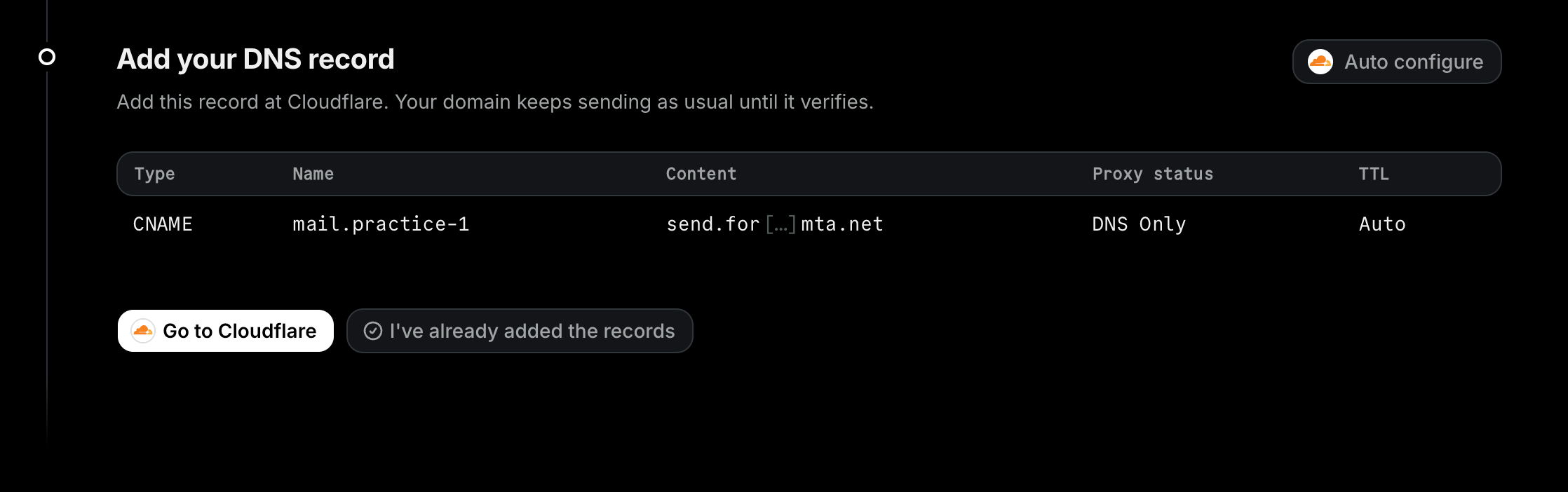
Add the CNAME record

If your DNS provider supports Domain Connect, click Auto configure and authorize Resend to add the record for you. The domain verifies on its own after that.Otherwise, click Manual setup and add the CNAME record shown on the page at your DNS provider, then click I’ve added the records. Your existing DNS records stay untouched. Don’t remove them.The DNS Records step showing the CNAME record to add at your DNS provider
Pay attention to the record’s proxy status. If you use Cloudflare, set the record to DNS only, not proxied (the cloud icon is gray, not orange). Proxied records don’t resolve as CNAMEs, so verification will fail.
4

Verify

Once the record verifies, the Forge section of your domain’s page shows a Ready tag. From there, Resend gradually moves your sending onto Forge to keep deliverability high, and the share of your email going through Forge grows over time. Once your email is routing through Forge, the tag changes to Active.

Checking your Forge status

The top of your domain’s page shows a Resend Forge badge with your domain’s Forge status. That status can be Disabled, Pending, Ready, or Active. Below you can see what each status means. There’s no fixed timeline for moving from Ready to Active, and the move can’t be sped up, paused or limited for a domain. A domain with open or click tracking turned on stays Ready and keeps sending through the current infrastructure until tracking is supported on Forge. See Requirements.

Receiving on Forge

If your domain also receives email, activating Forge shows a new MX record value. Receiving moves to Forge only once you replace your current MX record with it. Until then, inbound email keeps arriving the way it does today, so you can activate Forge for sending first and move receiving later. Nothing changes in how you receive: the same email.received webhook events, API, and retention apply. After you change the MX record, some sending servers keep using the old value until their cached copy expires, so allow for the record’s TTL before testing. Forge only accepts inbound email for a domain whose DKIM record is verified. Email that arrives before then is discarded and no email.received event is created for it, so verify the domain before you send test messages to it.

Domain Connect

Domain Connect lets Resend add the Forge records to your DNS for you. If your domain’s DNS provider supports it, the DNS Records step shows an Auto configure button.
  1. Click Auto configure.
  2. Sign in to your DNS provider in the window that opens and authorize the change.
  3. Resend adds the CNAME record and starts verifying it. You’re sent back to your domain’s page.
Domain Connect is only available on this page for domains that already existed before activating Forge. If you prefer to add the record yourself, click Manual setup.

Troubleshooting

If the Forge record doesn’t verify, these are some common troubleshooting methods.
A CNAME can’t coexist with other records at the same name. If the subdomain you chose already has records (e.g., an A, TXT, or MX record), pick a different Return-Path: under Configuration, click Finish Forge setup, then click Change next to the Return-Path and choose another name.
DNS changes can take up to 72 hours to propagate, though they’re usually much faster. Check that the record name and value match exactly what the Dashboard shows, and rule out copy and paste errors. Some DNS providers auto-append your domain name to record values; if the record value shows your domain twice, add a trailing period to the value.If you use Cloudflare, check the record’s proxy status: it must be DNS only, not proxied (the cloud icon is gray, not orange). Proxied records don’t resolve as CNAMEs, so verification will fail.Also confirm you added the record at the DNS provider that actually controls your domain’s DNS. If your DNS is managed in multiple places (e.g., your registrar and Cloudflare), run a nameserver lookup with a tool like dns.email to see which provider to use.
  1. Open your domain’s page. Under Configuration, click Finish Forge setup.
  2. The page shows your CNAME record again. Confirm it matches what’s in your DNS provider and click I’ve added the records to restart verification.
Unless you change the Return-Path, the record stays the same. You’re re-verifying the existing record and don’t need to change anything at your DNS provider.
Hover over the button to see the reason. Your domain doesn’t meet one of the requirements below.

Requirements

  • Domains on a Dedicated IP can’t activate Forge. Contact support@resend.com.
  • Open and click tracking aren’t supported on Forge yet. You can activate Forge on a domain that has tracking turned on, but its email keeps going through the current infrastructure until you turn tracking off.

FAQ

Your email still goes out. If Forge can’t complete a delivery, we route it through the engine Resend has used for years. The fallback is automatic and you don’t need to do anything.
When the receiving server asks to try again later, for example with greylisting or a temporary rate limit, Forge keeps retrying for up to 48 hours. Other temporary failures go back to the engine Resend has used for years, which retries for up to 14 hours. An email that still isn’t accepted when its retry window ends is marked as bounced.
No. Forge sits behind the same send path, so your API calls, SMTP credentials, and webhook events keep working exactly as today.Everything else on your account stays the same too: your logs, metrics, suppression list, rate limits, idempotency keys, templates, and Broadcasts.
No. Forge is available on every plan at no extra cost, and your plan and pricing don’t change when your domain moves to Forge.
Forge delivers from IP blocks Resend owns and operates. We monitor every step between your API call and the receiving server’s final answer, for each receiver and each IP. That lets us spot problems within minutes and keep the shared pool clean, so you don’t need to warm up IPs of your own. In our measurements, Forge gets email accepted faster than the previous engine at Gmail, Yahoo, and Outlook. See the full results.Whether an accepted email reaches the inbox or spam is still up to each mailbox provider. They decide mostly from your domain’s reputation, your content, and how your recipients engage. Your domain’s reputation doesn’t reset when your sending moves to Forge.
Forge is where Resend’s sending is headed, so domains that move to Forge stay on it. There’s no option to switch a domain back, and you won’t need one. Forge sends your email faster and gives you better delivery, from IPs Resend owns. Because we can see every step of each delivery, we can help more with any deliverability question.You also keep the safety net of the previous engine. If Forge can’t complete a delivery, the email automatically goes out through the engine Resend has used for years, so it still reaches your recipients.Once you’ve added the Forge record, keep it in place. Removing it doesn’t move a domain back.
There’s no retirement date. The previous engine stays in place as Forge’s automatic fallback.
The Return-Path is the address receivers use to return bounces and to check SPF. Forge delivers from infrastructure Resend owns, so the CNAME points that subdomain at Forge. This keeps SPF aligned with your domain and lets us process bounces. Your existing DNS records stay as they are.
The Return-Path is created under the domain you send from, so a sending domain like news.yourdomain.com gets a suggestion like mail.news.yourdomain.com. Recipients see your From address, not the Return-Path, so its length doesn’t affect how your email looks. The suggested label is only a default: you can type a shorter one, as long as nothing else uses that name in your DNS.
Forge runs only in North Virginia (us-east-1). Data residency is the same as for every other region. See Data Residency for details.Your DPA and data residency don’t change with Forge. Forge is part of Resend, not a separate company, so it doesn’t appear on the sub-processor list.
The Ready tag means your domain is ready for Forge. Resend moves your sending onto Forge gradually, so for a while part of your email still goes out the usual way. You don’t need to do anything.